Swift隨手紀錄Day18-新增成員頁面-UIView-SegmentedControl
防止偷懶Day18 講了好久的新增成員終於要來做了@@ 預想中希望有一個UIImageView來選擇頭像 當然也要一個TextField來輸入名字,以及註冊用的button 然後有一個選擇守備位置的功能 想了一想,用之前玩過的SegmentedControl來試試效果好了 GO
防止偷懶Day18
講了好久的新增成員終於要來做了@@
預想中希望有一個UIImageView來選擇頭像
當然也要一個TextField來輸入名字,以及註冊用的button
然後有一個選擇守備位置的功能
想了一想,用之前玩過的SegmentedControl來試試效果好了
GO
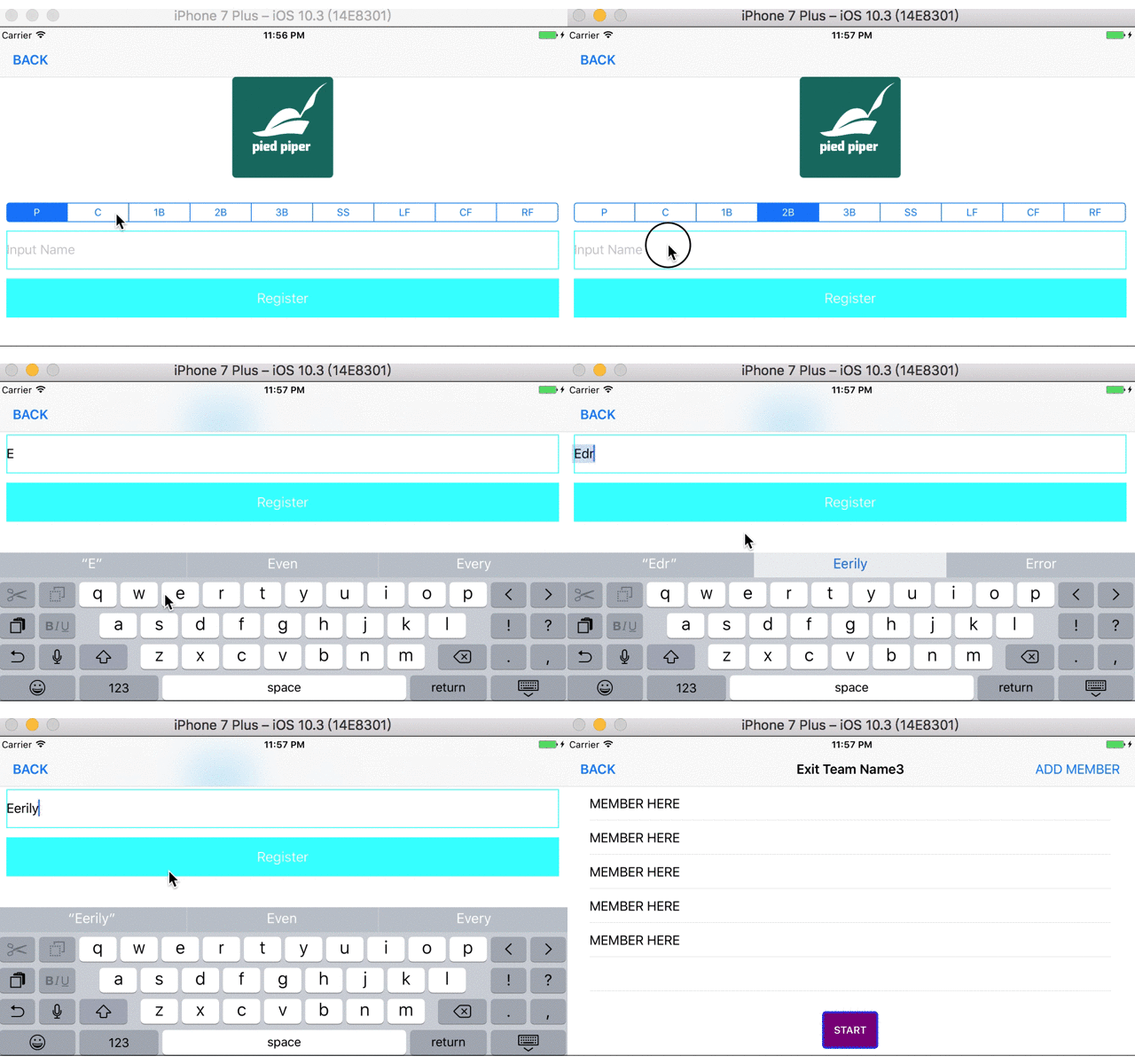
照例先看看完成的畫面
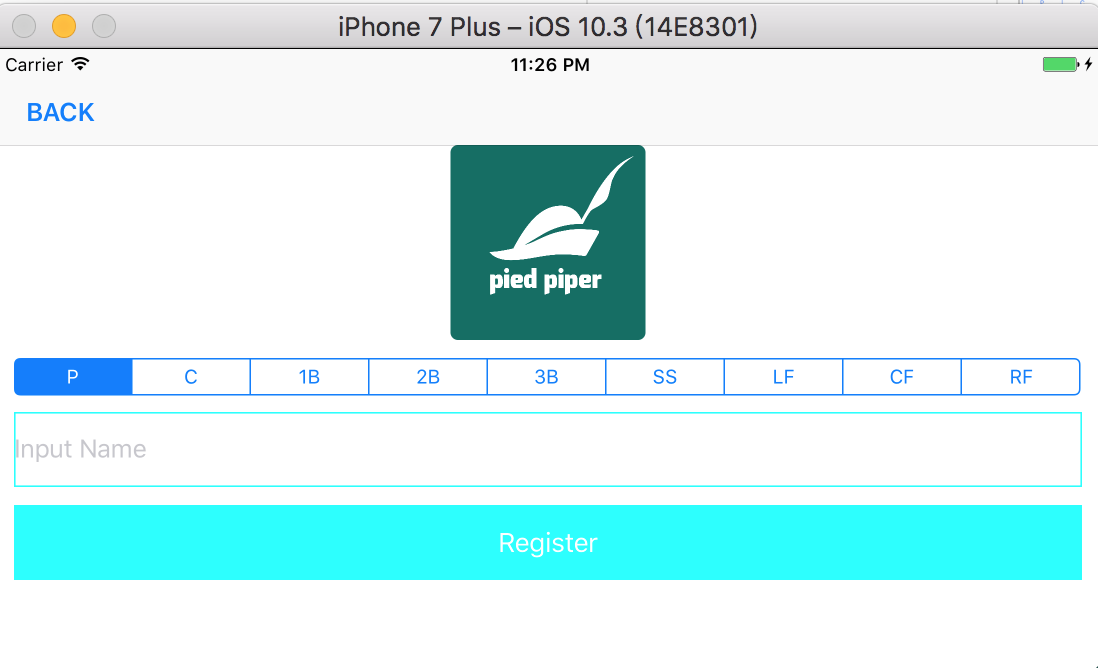
先看code吧
import

class
AddMemberController
UIViewController

    let
=
"P"
"C"
"1B"
"2B"
"3B"
"SS"
"LF"
"CF"
"RF"

    override
var
Bool
        return
false
    }

    let
UIImageView
=
        let
=
UIImageView
        image.translatesAutoresizingMaskIntoConstraints =
false
        image.image =
UIImage
"picture"
        image.contentMode =
        image.layer.cornerRadius =
5
        image.layer.masksToBounds =
true
        return
    }()

    let
UISegmentedControl
=
        let
=
UISegmentedControl
"P"
"C"
"1B"
"2B"
"3B"
"SS"
"LF"
"CF"
"RF"
		sc.selectedSegmentIndex =
0
        sc.translatesAutoresizingMaskIntoConstraints =
false
        return
    }()

    let
UITextField
=
        let
=
UITextField
        text.translatesAutoresizingMaskIntoConstraints =
false
        text.placeholder =
"Input Name"
        text.layer.borderColor =
UIColor
        text.layer.borderWidth =
1
        return
    }()

    let
UIButton
=
        let
=
UIButton
        button.translatesAutoresizingMaskIntoConstraints =
false
        button.backgroundColor =
        button.setTitle("Register"
        button.addTarget(self
#selector
        return
    }()

    override
func
viewDidLoad
        super
        NotificationCenter
self
#selector
AddMemberController
NSNotification
Name
UIKeyboardWillShow
nil
        NotificationCenter
self
#selector
AddMemberController
NSNotification
Name
UIKeyboardWillHide
nil
        view.backgroundColor =

        let
=
UIBarButtonItem
"BACK"
self
#selector
        navigationItem.leftBarButtonItem =

        view.addSubview(profileImage)
        view.addSubview(positionSegmentedControl)
        view.addSubview(nameText)
        view.addSubview(registerButton)

        profileImage.topAnchor.constraint(equalTo: view.topAnchor, constant: 64
=
true
        profileImage.centerXAnchor.constraint(equalTo: view.centerXAnchor).isActive =
true
        profileImage.heightAnchor.constraint(equalToConstant: 130
=
true
        profileImage.widthAnchor.constraint(equalToConstant: 130
=
true

        positionSegmentedControl.topAnchor.constraint(equalTo: profileImage.bottomAnchor, constant: 32
=
true
        positionSegmentedControl.centerXAnchor.constraint(equalTo: view.centerXAnchor).isActive =
true
        positionSegmentedControl.widthAnchor.constraint(equalTo: view.widthAnchor, constant: -
24
=
true
        positionSegmentedControl.heightAnchor.constraint(equalToConstant: 24
=
true


        nameText.topAnchor.constraint(equalTo: positionSegmentedControl.bottomAnchor, constant: 12
=
true
        nameText.centerXAnchor.constraint(equalTo: view.centerXAnchor).isActive =
true
        nameText.widthAnchor.constraint(equalTo: view.widthAnchor, constant: -
24
=
true
        nameText.heightAnchor.constraint(equalToConstant: 50
=
true

        registerButton.topAnchor.constraint(equalTo: nameText.bottomAnchor, constant: 12
=
true
        registerButton.centerXAnchor.constraint(equalTo: view.centerXAnchor).isActive =
true
        registerButton.widthAnchor.constraint(equalTo: view.widthAnchor, constant: -
24
=
true
        registerButton.heightAnchor.constraint(equalToConstant: 50
=
true

    }

    func
registerNewPlayer
        self
true
nil
    }

    func
backHome
        self
true
nil
    }

    override
func
touchesBegan
_
touches
Set
UITouch
with
event
UIEvent
        view.endEditing(true
    }

    func
keyboardWillShow
notification
NSNotification
        if
let
=
?
UIKeyboardFrameBeginUserInfoKey
as?
NSValue
?
            if
self
==
0
                self
-=
            }
        }
    }

    func
keyboardWillHide
notification
NSNotification
        if
let
=
?
UIKeyboardFrameBeginUserInfoKey
as?
NSValue
?
            if
self
!=
0
                self
+=
            }
        }
    }

	override
func
viewWillDisappear
animated
Bool
        super
        NSNotificationCenter
self
    }

}
11~44先實作需要的元件,UIImageView、UISegmentedControl、UITextField、UIButton
接下來在viewDidLoad將上面四個元件作為subView加入畫面跟設定anchor
在UISegmentedControl內可以設定一個[Any]!的陣列
這裡我們需要九個守備位置,因此放入["P", "C", "1B", "2B", "3B", "SS", "LF", "CF", "RF"]
然後為了避免之後使用者忘記這個欄位把selectedSegmentIndex預設為0
再來是83行點擊註冊鈕觸發的registerNewPlayer function,這邊先讓點擊後畫面在這邊退出回到上一頁
之後這邊準備把資料傳到Firebase上做儲存(應該很快…..吧( ̄ c ̄)y▂ξ)
最後是91行之後的四個function是負責處理點擊UItextField之後畫面出現keyboard的附加動作
第一個function處理點擊keyboard以外的部分會收起keyboard
第二跟第三個function則是分別負責在keyboard出現之後把畫面往上抬高,讓使用者依然看得到UItextField
以及收起來之後畫面還原的工作,而為了處理這兩個動作必須在viewDidLoad裡面設置一個觀察者來觀察keyboard的活動
因此在48、49行加入了NSNotificationCenter
然而加上NSNotificationCenter之後還是得記得在畫面消失之後回收
因此最後在viewWillDisappear裡面remove,完工
完成的畫面動作如下