Swift隨手紀錄Day20-新增成員頁面-UIImagePickerController-Part2
防止偷懶Day20 今天會把換圖像的功能做完 順便處理一些昨天把螢幕旋轉限制解除之後的幾個衍生問題處理一下
防止偷懶Day20
今天會把換圖像的功能做完
順便處理一些昨天把螢幕旋轉限制解除之後的幾個衍生問題處理一下
第一步先來看看UIImagePicker提供了些什麼資訊給我們
進到AddMemberHandler.swift
func
handleChangeImage
    let
=
UIImagePickerController
    imagePicker.delegate =
self
    imagePicker.allowsEditing =
true
    imagePicker.modalPresentationStyle =
    present(imagePicker, animated: true
nil
}

func
imagePickerController
_
picker
UIImagePickerController
didFinishPickingMediaWithInfo
info
String
Any

    print

}
為了可以編輯圖片的大小,先把imagePicker的allowEditing打開
然後新增didFinishPickingMediaWithInfo的function
接下來執行一下
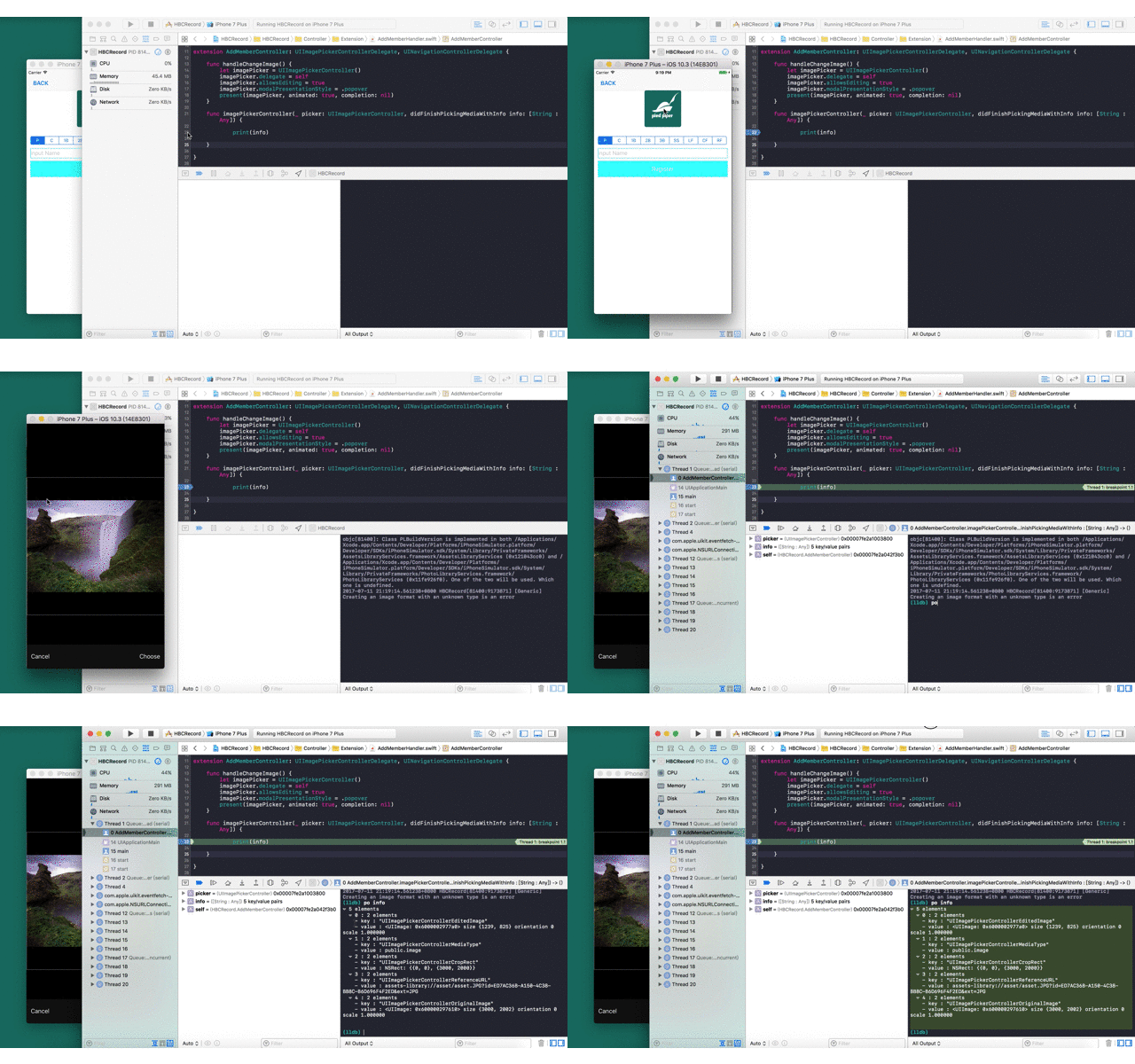
這裡其實我們可以看到這個函數裡的info可以提供我們五組數據
這邊我們需要圖片原本的大小,或者是有經過調整之後的大小
所以我們要用的的數據分別是UIImagePickerControllerOriginalImage以及UIImagePickerControllerEditedImage
這兩組key底下的數據
知道需求就來改寫didFinishPickingMediaWithInfo
func
imagePickerController
_
picker
UIImagePickerController
didFinishPickingMediaWithInfo
info
String
Any

    var
UIImage

    if
let
=
"UIImagePickerControllerEditedImage"
as?
UIImage
        selectedImageFromPicker =
    } else
if
let
=
"UIImagePickerControllerOriginalImage"
as?
UIImage
        selectedImageFromPicker =
    }

    if
let
=
        profileImage.image =
    }
    dismiss(animated: true
nil

}
function內先定義一個變數來儲存圖片
如果是經過修改的圖片就把UIImagePickerControllerEditedImage內的UIImage存進selectedImageFromPicker
如果是原圖就在selectedImageFromPicker內儲存UIImagePickerControllerEditedImage內的資料
接下來,判斷是否selectedImageFromPicker內有值,如果有,就把profileImage內的圖片替換掉
最後把畫面退出,Done
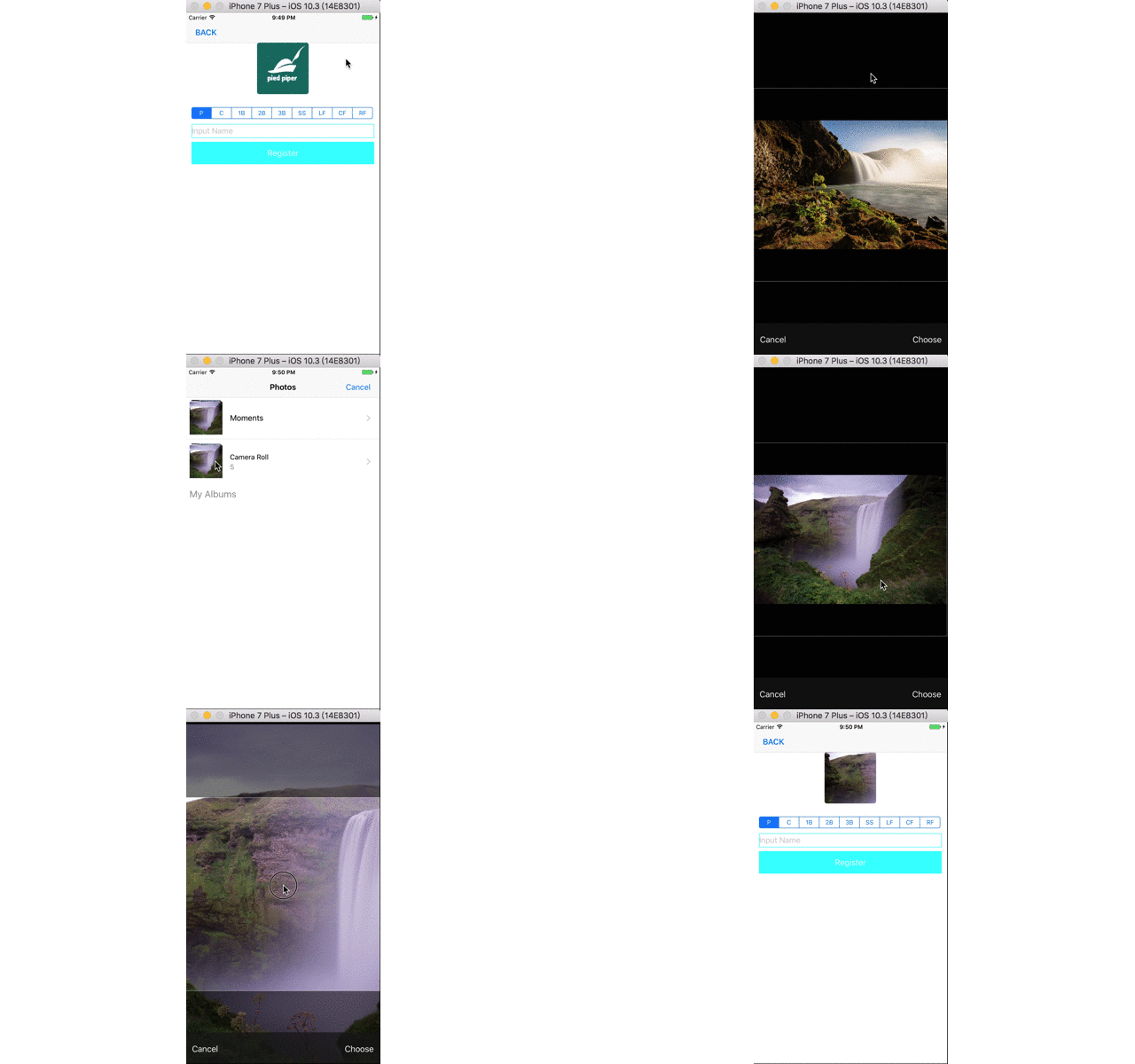
然後修正一下在AddMemberController.swift內處理keyboard升降的function
在可以旋轉螢幕的情況下,直立時keyboard就不會影響到現有畫面
所以我們先判斷使用者現在螢幕的狀態是橫躺還是直立的
如果是橫躺就做跟之前一樣的動作(抬高或降低畫面)
如果是直立就任何事都不做
func
keyboardWillShow
notification
NSNotification
    if
UIDevice
!=
        if
let
=
?
UIKeyboardFrameBeginUserInfoKey
as?
NSValue
?
            if
self
==
0
                self
-=
            }
        }
    }
}

func
keyboardWillHide
notification
NSNotification
    if
UIDevice
!=
        if
let
=
?
UIKeyboardFrameBeginUserInfoKey
as?
NSValue
?
            if
self
!=
0
                self
+=
            }
        }
    }
}
最後的最後稍微調整一下這一頁的畫面的anchor,因為發現在小螢幕似乎會切到
override
func
viewDidLoad
    super
    NotificationCenter
self
#selector
AddMemberController
NSNotification
Name
UIKeyboardWillShow
nil
    NotificationCenter
self
#selector
AddMemberController
NSNotification
Name
UIKeyboardWillHide
nil
    view.backgroundColor =

    let
=
UIBarButtonItem
"BACK"
self
#selector
    navigationItem.leftBarButtonItem =

    view.addSubview(profileImage)
    view.addSubview(positionSegmentedControl)
    view.addSubview(nameText)
    view.addSubview(registerButton)

    profileImage.topAnchor.constraint(equalTo: view.topAnchor, constant: 64
=
true
    profileImage.centerXAnchor.constraint(equalTo: view.centerXAnchor).isActive =
true
    profileImage.heightAnchor.constraint(equalToConstant: 110
=
true
    profileImage.widthAnchor.constraint(equalToConstant: 110
=
true

    positionSegmentedControl.topAnchor.constraint(equalTo: profileImage.bottomAnchor, constant: 28
=
true
    positionSegmentedControl.centerXAnchor.constraint(equalTo: view.centerXAnchor).isActive =
true
    positionSegmentedControl.widthAnchor.constraint(equalTo: view.widthAnchor, constant: -
24
=
true
    positionSegmentedControl.heightAnchor.constraint(equalToConstant: 24
=
true


    nameText.topAnchor.constraint(equalTo: positionSegmentedControl.bottomAnchor, constant: 12
=
true
    nameText.centerXAnchor.constraint(equalTo: view.centerXAnchor).isActive =
true
    nameText.widthAnchor.constraint(equalTo: view.widthAnchor, constant: -
24
=
true
    nameText.heightAnchor.constraint(equalToConstant: 30
=
true

    registerButton.topAnchor.constraint(equalTo: nameText.bottomAnchor, constant: 8
=
true
    registerButton.centerXAnchor.constraint(equalTo: view.centerXAnchor).isActive =
true
    registerButton.widthAnchor.constraint(equalTo: view.widthAnchor, constant: -
24
=
true
    registerButton.heightAnchor.constraint(equalToConstant: 48
=
true

}
下篇待續~